
It is the fourth working day of the month. The CFO wants last month’s numbers for a board pack, the controller is still waiting on three vendor invoices, and someone has just posted a correcting entry into a period that was already reviewed. The trial balance has changed again. If that sounds familiar, you are not alone. For many finance teams, the month-end close is the most stressful week of every month.
A faster close in Dynamics 365 Business Central is not about working longer hours in close week. It comes from three things working together: a repeatable process that everyone follows, the right built-in features switched on and configured properly, and fewer manual workarounds between Business Central and the other systems your business runs on. Get those right, and a close that used to take ten working days can realistically come down to five, and often fewer.
In this guide, we draw on what we see across Business Central implementations to cover:
- How to measure your close, so you know where you stand today
- The bottlenecks that slow most Business Central closes down
- The setup work that has to be right before automation can help
- A detailed, step-by-step close sequence inside Business Central
- A sample five-day close calendar your team can adapt
- The Business Central features that remove the most manual effort
- Common mistakes, a ready-to-use checklist and answers to frequent questions
What Is Month-End Close in Business Central?
Month-end close in Dynamics 365 Business Central is the set of tasks a finance team completes after each month ends to make sure the general ledger is complete, accurate and ready for reporting. It includes posting all transactions for the period, recording accruals and depreciation, adjusting inventory costs and exchange rates, reconciling bank and subledger balances, reviewing financial reports, and then restricting posting dates so the period cannot change.
Unlike some ERP systems, Business Central does not force you to close each month formally, as Microsoft’s period-end documentation explains. Accounting periods are closed once a year at fiscal year end, and monthly control comes from the Allow Posting From and Allow Posting To dates. That makes a disciplined monthly process especially important.
How Do You Measure Month-End Close Performance?
You cannot shorten what you do not measure. Before changing anything in Business Central, spend one close cycle simply recording how long each step takes and where the waiting happens. Most teams are surprised: the slowest part of the close is rarely the accounting itself, but the time spent waiting for information or fixing errors.
These five measures give a clear picture of close health and are easy to track in a shared spreadsheet or a simple Power BI report:
| Measure | Howe to track it | What it tells you |
|---|---|---|
| Measure | How to track it | What it tells you |
| Days to close | Working days from period end until final reports are issued | Your headline speed, and the number leadership cares about |
| Post-close adjustments | Count of entries posted after the period was reported | How reliable your first set of numbers is |
| Unreconciled items | Open bank and balance sheet differences at day 3 | Whether reconciliation is keeping pace with the close |
| Manual journal entries | Count of journal lines typed by hand each month | How much repetitive work is still waiting to be automated |
| Late transactions | Invoices and expenses entered after the cut-off date | Whether the cut-off is being respected across the business |
Once you have a baseline, pick the two or three steps that take the longest and focus your improvement work there. Small, steady gains each month add up quickly.
Why Does Month-End Close Take So Long in Business Central?
Most slow closes are not caused by the ERP itself. They come from gaps between the system and the way work actually gets done. These are the bottlenecks we see most often in Business Central environments:
1. Late or missing transactions
Vendor invoices, employee expenses and timesheets often arrive days after the period ends. Each late document means another posting, another reconciliation check and sometimes another version of the reports. When there is no firm cut-off, the close never really starts, it just drifts.
2. Manual bank and balance sheet reconciliations
Matching bank statements line by line is slow, and it is easy to miss a duplicate payment or a bank fee. Balance sheet accounts such as prepayments, accruals and suspense accounts are often reconciled in spreadsheets that sit outside Business Central, so there is no audit trail and no easy way to see what is still open.
3. Repetitive journals typed from scratch
Rent, insurance, software subscriptions, loan interest and standard accruals follow the same pattern every month. Re-keying them wastes time and creates small errors, such as a wrong dimension or a transposed amount, that then take even longer to find.
4. Posting periods left wide open
If every user can post to any date, entries quietly land in a month that has already been reviewed. The trial balance changes after it has been shared, and the team loses confidence in its own numbers.
5. Data that lives outside Business Central
Many businesses run a PSA tool, a payment processor, a payroll provider or an online store alongside their ERP. When that data is exported and imported by hand, every month starts with a round of copying, checking and correcting before the real close work can begin.
6. No shared checklist or clear ownership
When close tasks live in one person’s head or in a chain of emails, nobody can see what is finished, what is blocked or who is responsible. Holidays and staff turnover make this risk much worse.
What Should You Fix Before Automating the Close?
Automation only speeds up a close when the underlying setup is sound. If posting groups point to the wrong accounts or dimensions are used inconsistently, automating the process simply produces wrong numbers faster. A short review of these four areas pays for itself within a few months.
Chart of accounts. Over time, many companies add accounts for one-off needs until the chart becomes cluttered. Merge or block accounts that are no longer used, make sure every balance sheet account has a clear owner, and keep the structure simple enough that financial reports are easy to build.
Dimensions. Dimensions such as department, project or location are what make Business Central reporting powerful. Decide which dimensions are mandatory for which accounts, and use Default Dimensions with value posting rules so the system blocks entries that are missing them. This removes a large share of month-end close in Business Central reclassification work.
Posting groups. General, customer, vendor, inventory and VAT or tax posting groups decide where every transaction lands in the general ledger. Review them carefully, especially after a new product line, entity or tax rule is added. A single wrong mapping can leave a control account that never reconciles.
Master data quality. Duplicate vendors, customers with missing payment terms and items with incorrect costing methods all create exceptions during close. A quarterly master data clean-up, supported by approval workflows for new records, keeps those problems from building up.
How to Do Month-End Close in Business Central: 15 Steps
A repeatable sequence keeps everyone working on the right task at the right time. The steps below follow the natural flow of data through Business Central, from subledgers to the general ledger to reporting.
Phase 1: Prepare before the month ends
Step 1. Announce the cut-off. A few days before month end, remind department heads, purchasing, sales and project managers of the date by which invoices, expense claims, timesheets and goods receipts must be in Business Central. Put the cut-off on a shared calendar so it becomes routine rather than a monthly request.
Step 2. Clear the documents in progress. Review open sales orders, purchase orders and transfer orders. Post everything that has physically shipped or been received. Then look at the lists of goods shipped but not invoiced and received but not invoiced. These are your accrual candidates and the main source of cut-off errors.
Step 3. Reconcile bank accounts early. Do not wait for close week. Import bank statement files or use a bank feed, then let Bank Account Reconciliation match entries automatically. Reconciling weekly means only a few days of exceptions are left when the month ends.
Phase 2: Lock and process
Step 4. Restrict posting dates. In General Ledger Setup, set Allow Posting From and Allow Posting To to the period being closed. In User Setup, give a small number of senior users a slightly wider window for adjustments. This one control stops most of the surprises that change reports after they are shared.
Step 5. Post recurring journals and deferrals. Run your recurring general journals for rent, subscriptions, loan interest and standard allocations. Check that deferral schedules created from purchase and sales documents have posted as expected for the period.
Step 6. Book accruals and prepayments. Post accruals for goods and services received but not yet invoiced, and release prepayments for the portion used in the month. Using reversing journal entries for accruals means they clear automatically at the start of the next period.
Step 7. Run depreciation. Use Calculate Depreciation for your fixed asset depreciation books, review the proposed journal for unusual amounts or new assets, and post it.
Step 8. Close out inventory costing. Run Adjust Cost – Item Entries so that item costs reflect actual purchase and production costs. If automatic cost posting is not enabled, run Post Inventory Cost to G/L. Then compare the Inventory Valuation report with the inventory accounts in the general ledger.
Step 9. Revalue foreign currency. Update exchange rates for the period end and run the exchange rate adjustment. Open customer, vendor and bank balances in foreign currencies are revalued, and unrealized gains and losses are posted.
Phase 3: Reconcile and review
Step 10. Reconcile subledgers to the general ledger. Confirm that customer, vendor, bank, fixed asset and inventory balances agree with their control accounts. Reconcile balance sheet accounts such as accruals, prepayments, payroll liabilities and suspense, and attach supporting documents in Business Central where possible.
Step 11. Settle intercompany balances. If you run more than one company, confirm that intercompany receivables and payables agree before consolidation.
Step 12. Review the results. Run the Trial Balance and your financial reports. Compare actuals with budget and with prior periods, and investigate any line that moves more than your agreed threshold. A short written commentary on the main variances adds a lot of value for management.
Phase 4: Report and lock
Step 13. Publish the reporting package. Share the balance sheet, income statement, cash flow and key management reports. Power BI dashboards connected to Business Central can refresh as soon as the books are final.
Step 14. Close the period. Move the posting date window forward so no further entries can land in the closed month. At fiscal year end, also close the accounting year and run Close Income Statement to transfer the result to retained earnings.
Step 15. Hold a short retrospective. Spend fifteen minutes asking what slowed the team down this month and what one change would help next month. This habit is what turns a one-off improvement into a steadily faster close.
What Does a Five-Day Month-End Close Calendar Look Like?
Turning the steps above into a fixed calendar is what makes the close predictable. Everyone knows what happens on which day, and blockers show up early instead of on the day reports are due. Here is a five-day calendar that works well for many small and mid-sized Business Central users.
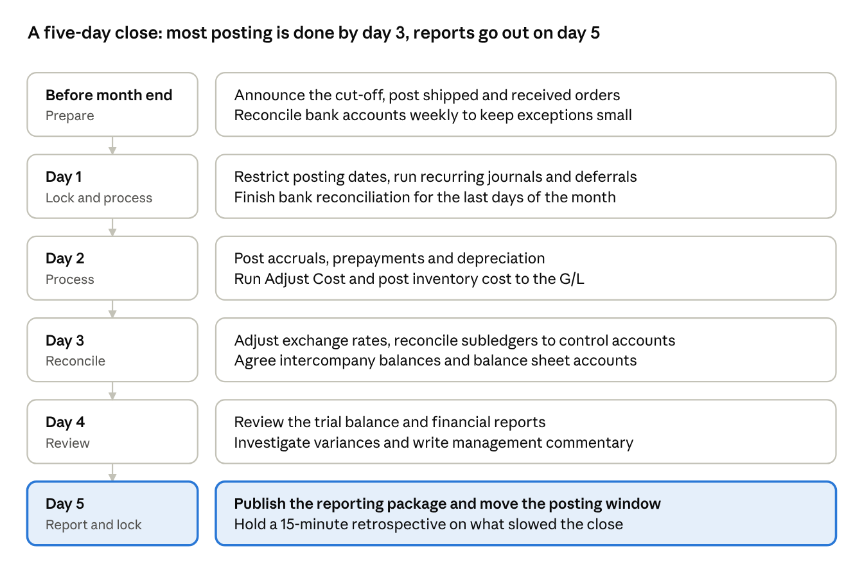
Adjust the days to your own business. A company with heavy inventory may need an extra day for costing, while a services firm with integrated billing might combine days 2 and 3. The principle stays the same: move as much work as possible before month end, and keep the final days for review rather than data entry.
Which Business Central Features Speed Up Month-End Close?
Many teams use only part of what Business Central offers. Switching on a handful of standard features can remove hours of manual work each month.
Recurring general journals
Recurring journals let you set up an entry once and post it every period with a single action. Choose the recurring method that fits each entry: a fixed amount for rent, a variable method for allocations, or a reversing method for accruals that should clear automatically on the first day of the next month. You can also spread one amount across several accounts or departments using allocation lines.
Practical tip: group recurring entries into batches by owner or by type, such as one batch for accruals and one for allocations. It makes review faster and keeps responsibilities clear.
Deferral templates
Annual software licences, insurance premiums and service contracts paid or billed in advance should be spread across the months they cover. Deferral templates do this automatically. Assign a template to a G/L account, item or resource, and Business Central creates the deferral schedule when the purchase or sales document is posted.
Practical tip: set a default deferral template on accounts like Prepaid Insurance so users cannot forget to apply it.
Bank Account Reconciliation with automatic matching
Import bank statements in a supported file format or through a bank feed, and Business Central suggests matches based on amount, date and text. Payment Reconciliation Journals go a step further by applying incoming customer payments and outgoing vendor payments directly to open entries. Your team then reviews only the lines that did not match.
Practical tip: create text-to-account mapping rules for recurring bank charges and interest, so those lines post to the right account without manual work.
Posting date controls
Allow Posting From and Allow Posting To in General Ledger Setup set the company-wide window. User Setup can override that window for named users. Together they let you close a period for most people while keeping a controlled route for late adjustments.
Approval workflows
Workflows for general journal batches, purchase invoices and new vendors add a review step before anything posts. Approvers can act from Business Central, email or Microsoft Teams, and every approval is recorded for audit.
Financial reports and Power BI
Financial reports, previously called account schedules, build your balance sheet, income statement and cash flow directly from the ledger, with dimension filters and comparison columns. Add Power BI reports on top for management dashboards that refresh automatically once the period is final, and use Excel layouts where your team prefers to work in spreadsheets.
Copilot and AI assistance
Microsoft continues to add Copilot capabilities to Business Central, including help with bank reconciliation matching and creating documents from unstructured information. Availability depends on your version, region and settings, so check what is enabled in your environment and test it on a non-critical process first.
Integrations that remove re-keying
The biggest time savings often come from outside the standard product. When billing data from a PSA tool, payments from an online payment processor or orders from an e-commerce platform flow straight into Business Central, the export-import-check cycle disappears. A native integration also means the data arrives with the right dimensions and posting groups, so it reconciles first time.
What Are the Most Common Month-End Close Mistakes?
Even well-run finance teams fall into a few recurring traps. Watching for these will save you hours each month.
Running Adjust Cost too late. If Adjust Cost – Item Entries is only run at month end, it can take a long time and surface cost problems when there is no time left to investigate them. Schedule it as a job queue entry to run nightly or weekly so month end only needs a final run.
Forgetting to reverse accruals. Accruals posted as normal entries stay on the balance sheet until someone remembers to remove them, and the expense is then counted twice when the invoice arrives. Use reversing recurring journals or a reversing posting date so they clear automatically.
Closing the period before reconciling. Moving the posting window forward is the last step, not the first. If you lock the period before subledgers are reconciled, every correction needs a special exception and the audit trail becomes harder to follow.
Treating the close as a finance-only task. Most delays start outside the finance team: a late purchase invoice, an unapproved expense report or an unreceived delivery. Share the close calendar with operations, sales and purchasing so they know which dates matter.
Reconciling in spreadsheets with no link to Business Central. Offline reconciliations are hard to review and easy to lose. Keep supporting documents attached to the relevant entries or accounts, so auditors and new team members can follow the work.
Automating a broken process. If an account never reconciles because of a posting group error, a workflow or an AI agent will not fix it. Correct the setup first, then automate.
Month-End Close Checklist for Business Central
Use this checklist as a starting point and assign an owner and due day to each task. Over time, track how long each step takes so you can target the slowest ones first.
- Cut-off date communicated to all departments
- All sales orders shipped and invoiced, or accrued
- All purchase receipts invoiced, or accrued
- Posting date window restricted to the closing period
- Bank accounts reconciled and exceptions cleared
- Recurring journals and deferrals posted
- Accruals and prepayments reviewed and posted
- Depreciation calculated and posted
- Inventory costs adjusted and reconciled to the G/L
- Exchange rates updated and adjustments run
- Customer, vendor and fixed asset subledgers reconciled to control accounts
- Intercompany balances agreed and eliminated, if applicable
- Trial balance and financial reports reviewed for variances
- Reporting package distributed to management
- Period closed and posting window moved forward
Tip: Aim to move tasks earlier in the month. Reconciling bank accounts weekly and posting accruals as soon as goods are received means far less work is left for close week.
Frequently Asked Questions
How long should a month-end close take in Business Central?
There is no single right number, because it depends on the size of the business, the number of entities and how much data comes from other systems. Many small and mid-sized companies on Business Central aim for five working days or fewer. The more useful goal is steady improvement against your own baseline.
Do I need to close each month in Business Central?
Business Central does not force you to close individual months. Accounting periods are opened and closed at year level. Monthly control comes from the Allow Posting From and Allow Posting To dates, which is why setting them correctly every month is so important.
What is the difference between month-end and year-end close?
Month-end close is about accurate, timely reporting for the period. Year-end close adds closing the fiscal year in Accounting Periods and running Close Income Statement, which moves the year’s profit or loss into retained earnings. Year end usually also involves auditors, so good monthly habits make it much easier.
Can AI really help with the close?
Yes, when it is applied to the right tasks. AI is well suited to repetitive matching, data entry from documents and flagging unusual transactions. It works best with a clean setup and a human reviewing the exceptions, rather than as a replacement for accounting judgement.
Should we outsource part of the close?
If your team spends most of close week on transaction processing, outsourcing tasks such as AP, AR or bank reconciliation can free your in-house accountants for review and analysis. It works best when the outsourcing partner also understands your Business Central setup.
How Can DynaSUM Help You Close Faster?
DynaSUM helps you close faster by fixing your Business Central setup, automating repetitive work and adding capacity when your team is stretched. As a Microsoft Solutions Partner based in the USA, we combine Business Central expertise with AI for finance and ERP and finance operations support, so we can improve both the system and the process behind your close.
- Close process assessment. We map your current close, identify the slowest steps, and recommend the Business Central configuration and automation that will have the most impact.
- Configuration and automation. We set up recurring journals, deferrals, posting controls, approval workflows and financial reports, and apply Power Automate and Copilot where they remove manual effort.
- Native integrations. Our Stripe Connector writes customer payments into Business Central as they clear, while DynaConnect for ConnectWise and TaskCentral for Autotask bring PSA billing data straight into your ERP.
- AI agents for finance. Reconciliation, payables and expense approval agents take on repetitive matching and routing work, with your team reviewing the exceptions.
- Finance and accounting BPO. If your team is stretched, our BPO services can run accounting, AP, AR and reporting tasks for you, on the same Business Central environment we support.
Ready to shorten your close?
A faster month-end close gives leadership timely numbers and gives your finance team time back for analysis. Book a consultation with DynaSUM to review your current close and build a plan to bring it down to days.